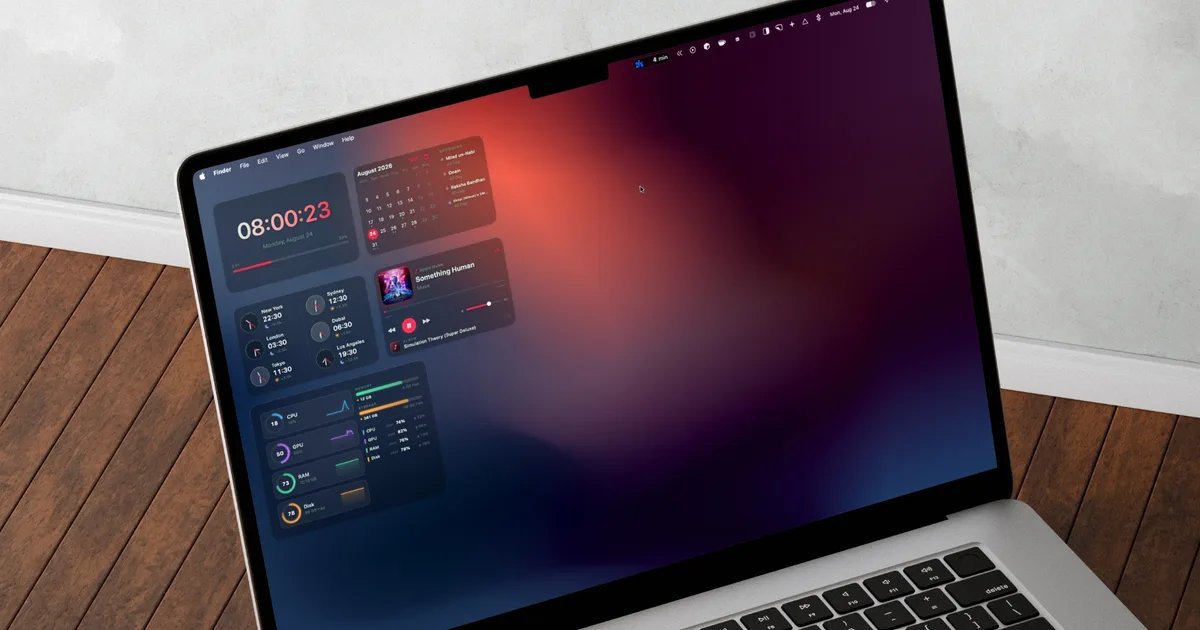
Apple added desktop widgets to the Mac operating system back in 2023 with macOS Sonoma. I remember the first day I pulled a few up on my desk and immediately moved them a few minutes later. Native widgets never fit into how I use my Mac. His looks were wrong and frankly, there just weren’t enough of them to deal with.
Since then, I’ve been looking for something that does for the Mac what widget apps like Widgetsmith do on the iPhone. I wanted more options, and more importantly, I wanted widgets that actually looked like they were on a Mac desktop instead of tacked on.
After trying a bunch of apps that promised this, I finally found one that delivers. The name of the application BetterMacWidgetsand in this article I’ll show you how it finally got me started using widgets on my Mac.
Widgets that sit right on your desktop
Apple’s desktop widgets are tied to whatever system apps support them, and third-party options are still rare. BetterMacWidgets reverses this. It gives you access to more than 20 widgets and you can drag them anywhere, aligned on an invisible grid, so the layout always stays neat.
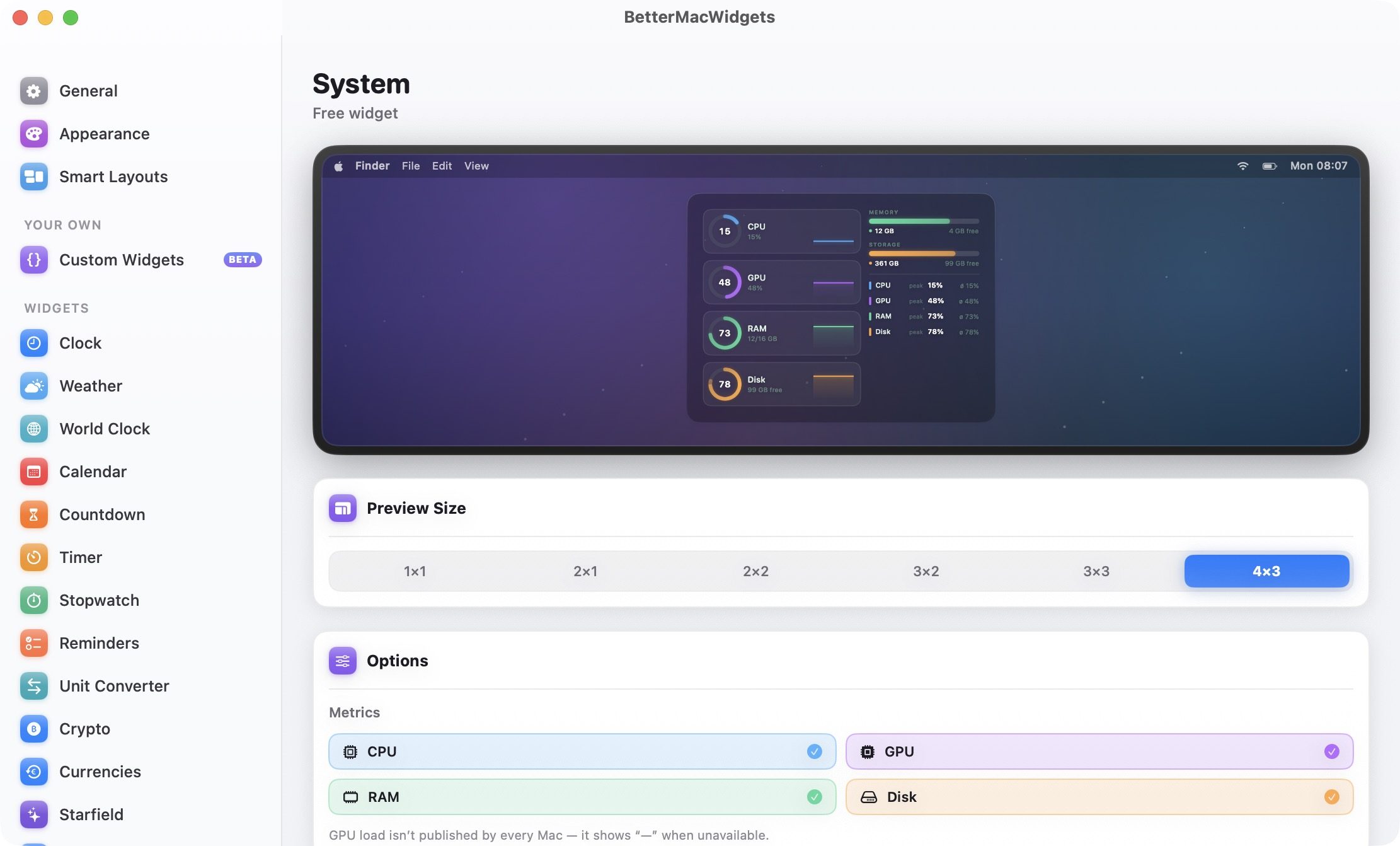
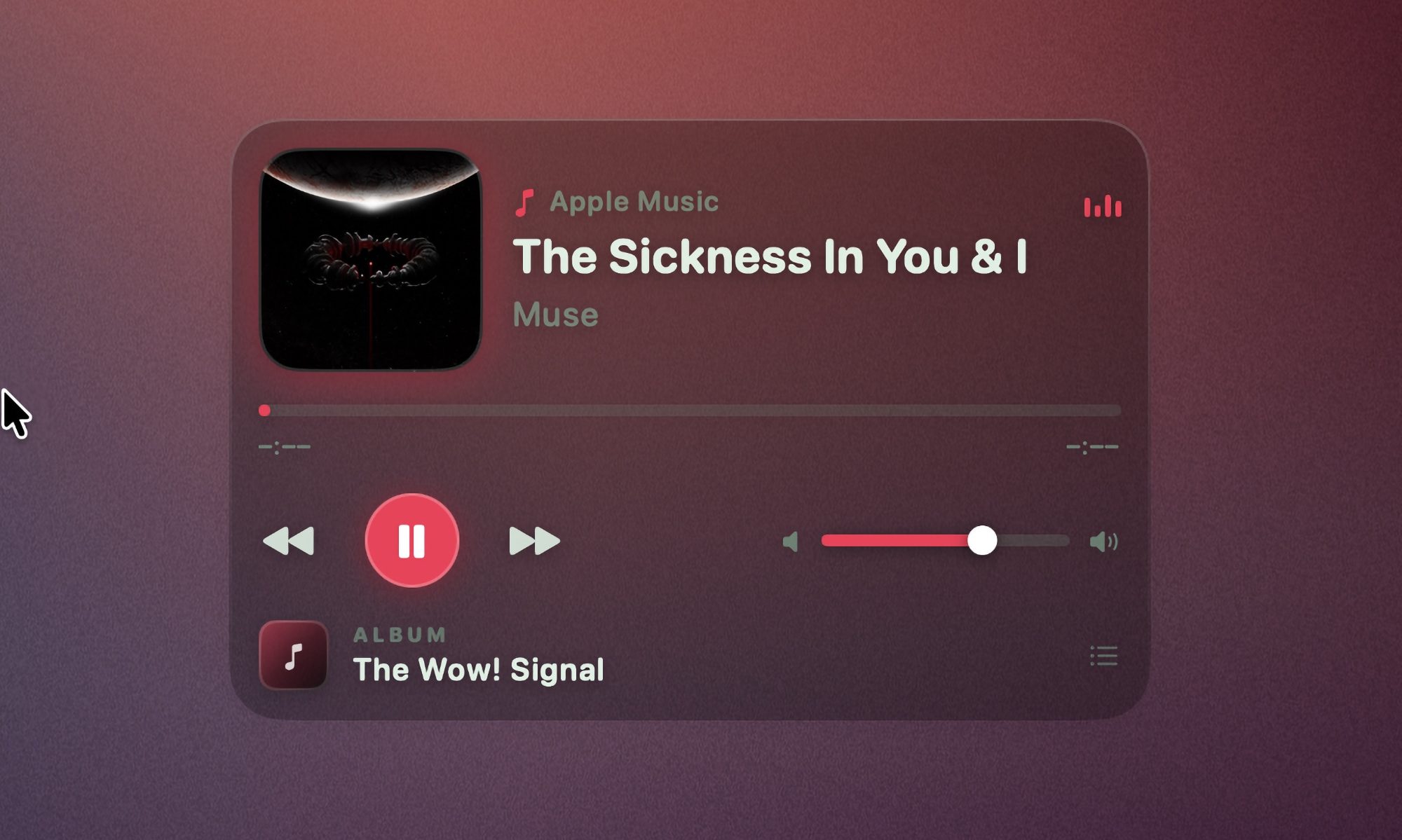
In the app, you can choose from up to six sizes depending on the widget, from small 1×1 squares to larger 4×3 tiles. I love the Now Playing widget. It displays the artwork and title and allows you to play, pause and skip tracks directly from the tile. With this, I never have to look for music controls.
If you like to monitor the health of your Mac, the System Stats widget gives you animated gauges for CPU, GPU, memory, and disk, as well as a battery meter that visibly drains while charging. And don’t worry about your Mac slowing down because of the animation.
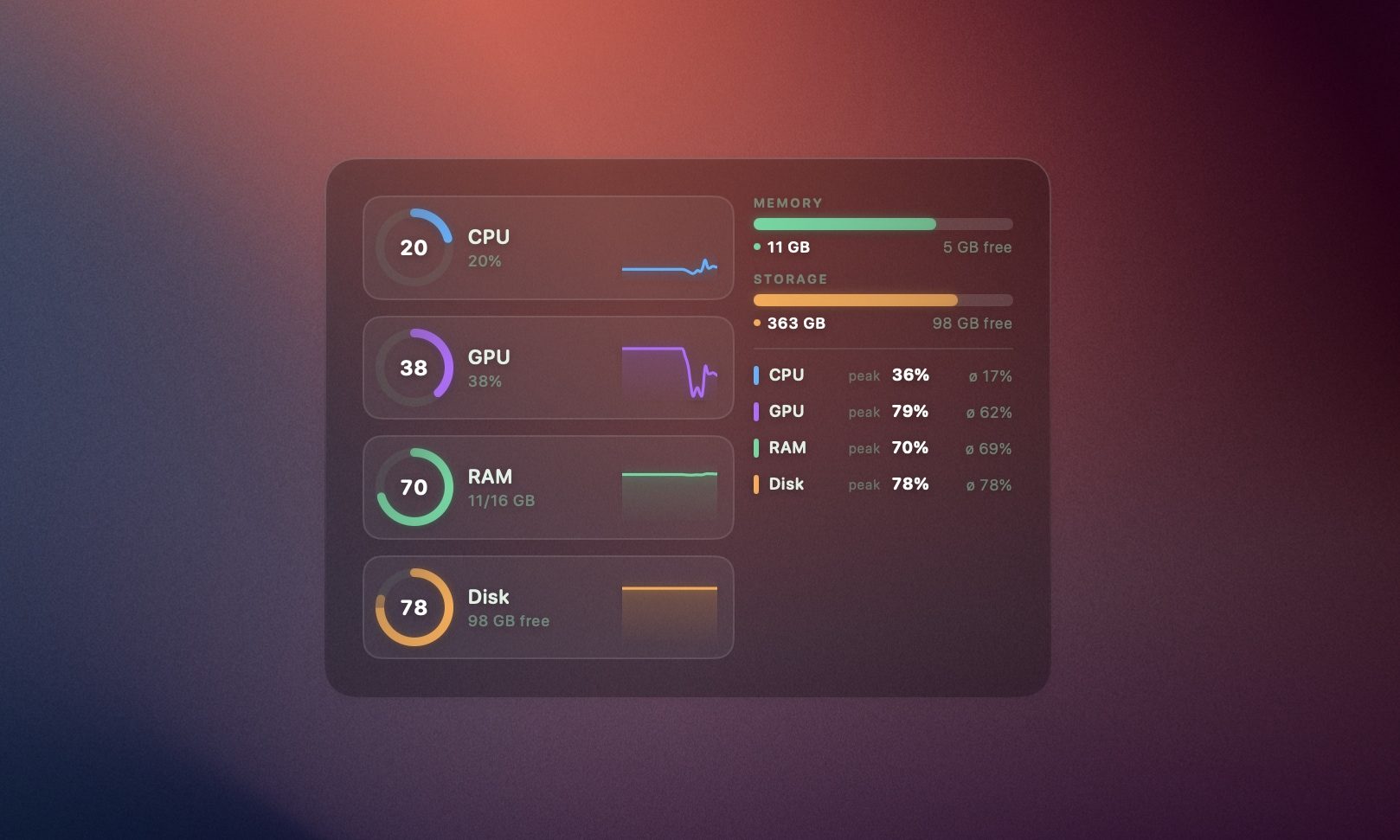
Widgets only animate as long as they are visible. If they hide behind an application window, they stop the animation. If you still see an impact on your battery, you can turn off the animation all together.
Weather, reminders and more
Weather widgets are common, but I appreciate the way BetterMacWidgets displays them. It collects real forecast data from Open-Meteo based on your exact location, approximate location or any city you want to enter manually. The best part of the widget is the live animation. Whether it’s sunny, raining or snowing, the widget will animate to reflect the same.
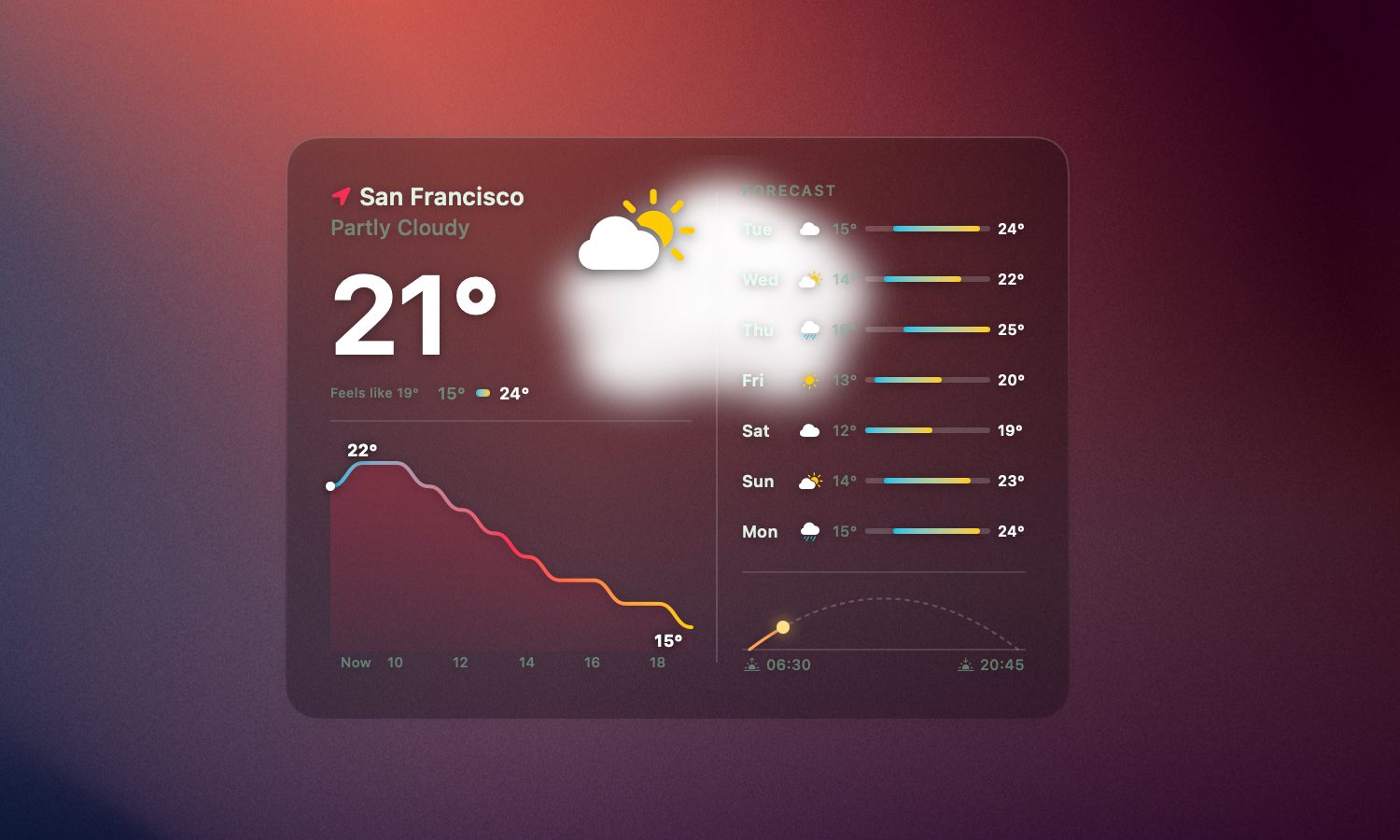
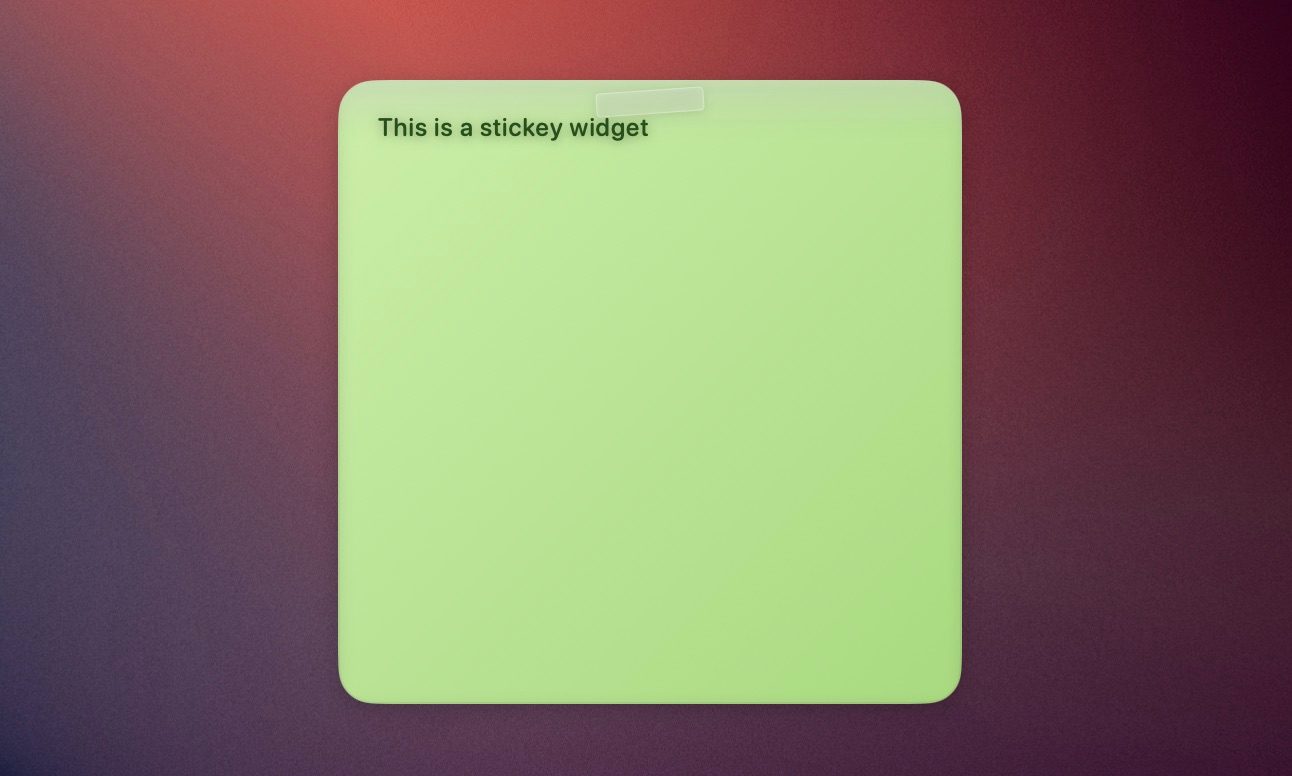
You also get a Reminders widget that syncs directly with Apple Reminders. You can check the task directly from the widget and it will update in the Reminders app. Pair it with the Sticky Note widget and you have a simple productivity corner right on your desktop.
If you want something more laid back, there’s a Photos widget that runs a slow, Ken Burns-style slideshow using photos from a selected folder. There is also a Starfield widget that gives you a starry sky on your desktop.
Stack widgets to save space
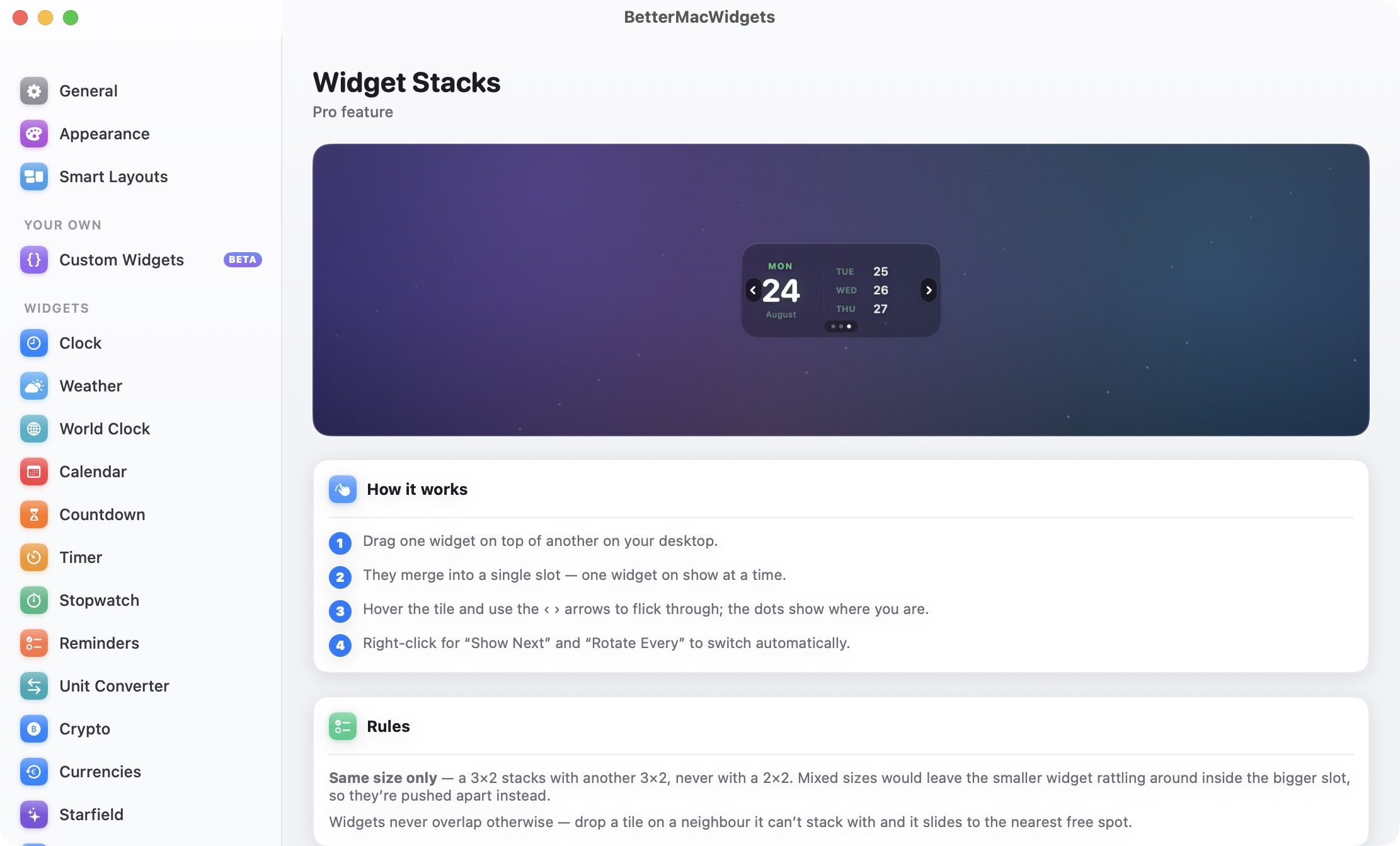
If you use too many widgets, Widget Stacks is here to manage your widget mania. Drag one widget onto another widget of the same size and they will merge into a single slot. You can then use the arrows to scroll through them when you hover over the tiles, or set them to rotate automatically. Note that stacking only works between widgets of the same size. A 3×2 widget does not stack with a 2×2. Instead, dropping one on top of the other pushes them apart into the nearest open space.
Do it like your Mac
As I mentioned, the best part of BetterMacWidgets is the appearance of the widgets. It includes 20 built-in themes that change the accent color, glass tint, and font color. Three of them, Midnight, Graphite, and Ocean, are free, and the rest come with Pro.
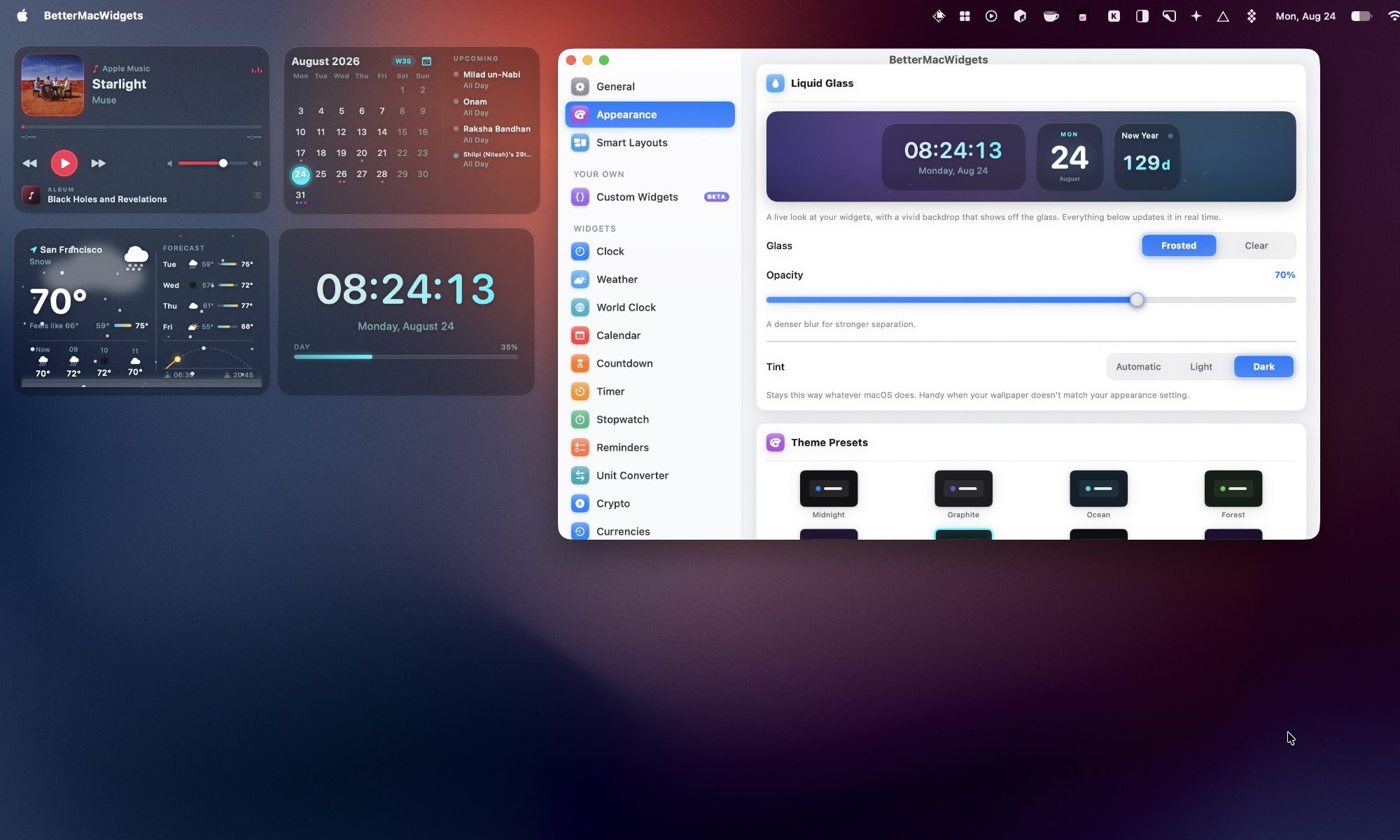
I can also customize how the widgets look. The free Frosted look gives you a translucent glass card with an adjustable opacity slider that allows you to go from a barely visible tint to a denser glass plate.
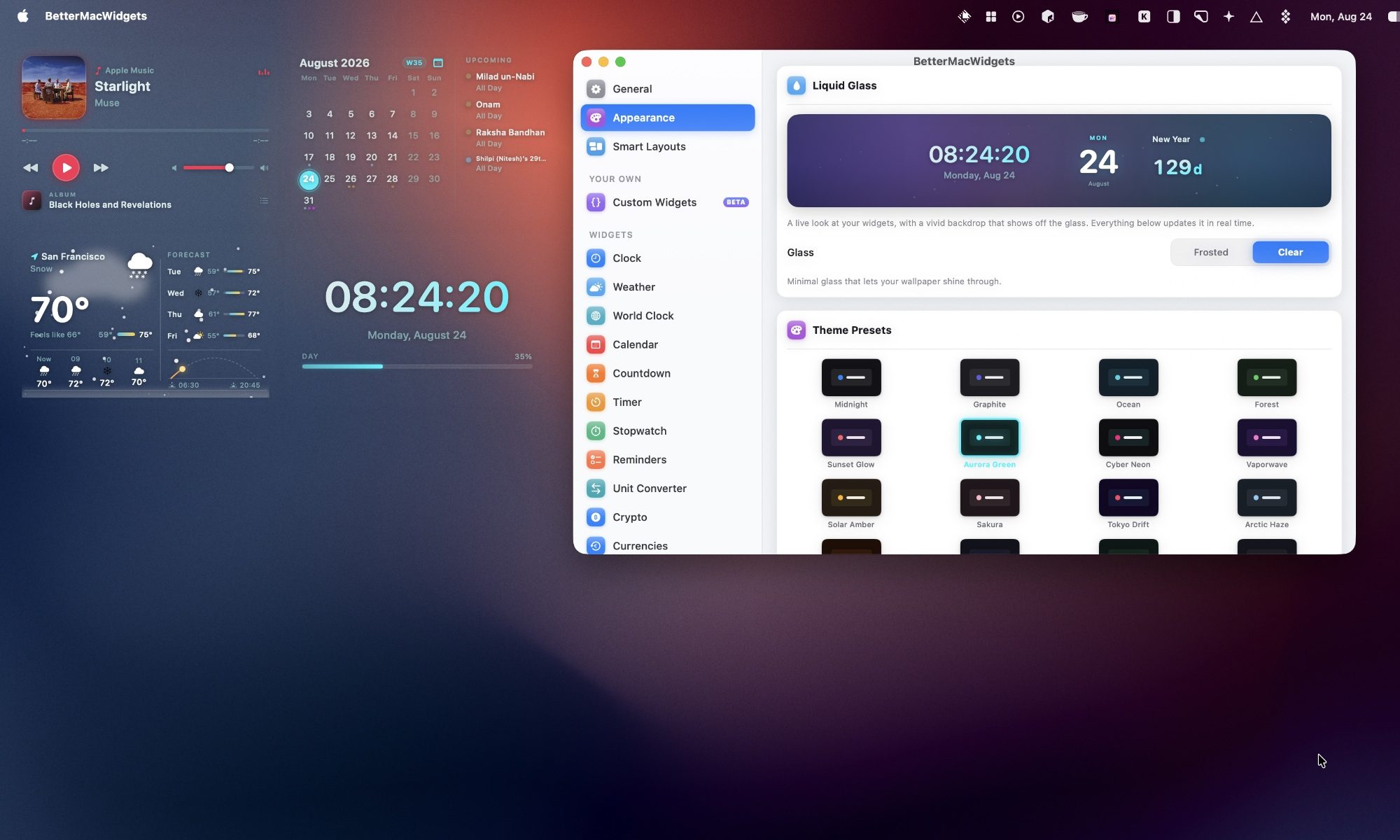
If you’re using Pro, the Clear look removes the tile background entirely, leaving only the widget content floating on the background with a soft shadow for readability. It’s the closest thing to a native Apple look I’ve seen on a third-party Mac widget.
Create profiles for your day
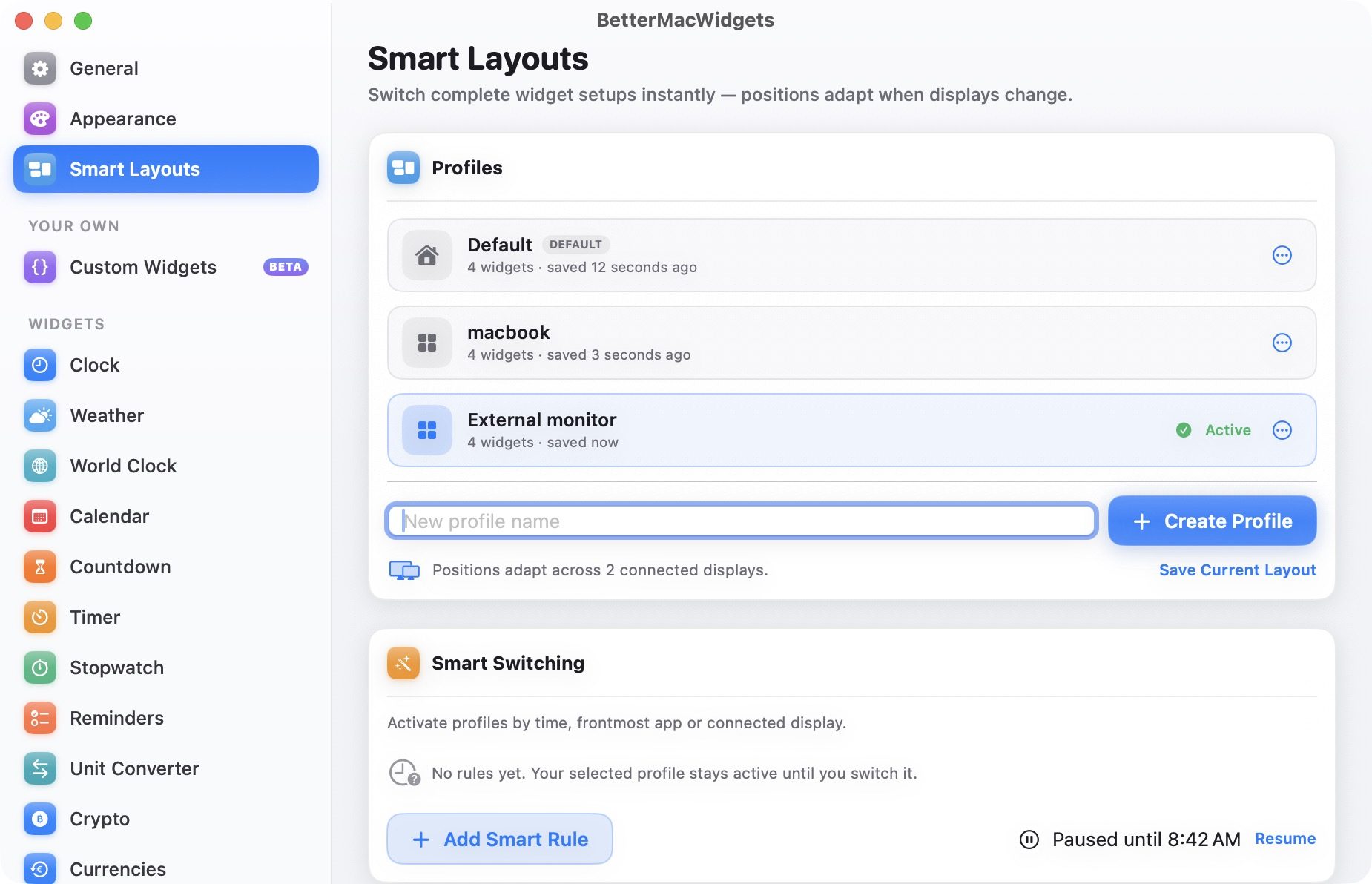
If you use multiple desktop settings, BetterMacWidgets allows you to save named widget profiles that remember widgets and their placement. I can create multiple widget settings, save them as profiles, and switch between them with a single click. There’s also a Smart Switching feature that can automatically activate a profile based on the time of day, the app in the foreground, or the connected display.
Final thoughts
I’ve used many widget apps on my Mac, and BetterMacWidgets is the first one that made me want to keep widgets on my desktop instead of hiding them. Between the Now Playing widget, the System Stats gauges, and the Clear glass look, my desktop finally looks the way I’ve wanted it to since Sonoma first brought widgets to the desktop two years ago.
\