Android phone comes with several Google apps. You get Maps, Photos, Gmail, and Chrome, as well as many other programs that rarely open. Chrome desktop has a large user base and this strategy will expand its reach to more Android users. The browser is your default gateway to the internet and browsing websites, and its popularity will make you want to use it instead of any other pre-built browsing app.
For most phone brands, it makes sense to use Chrome instead of the lackluster option they offer. But Samsung is trying to make its browser stand out and offer a really useful alternative to Chrome. I previously disabled my Samsung phone’s default browser and decided to give it a try and in some ways found it better than Chrome. Let’s discuss them.
First impressions were great
Go beyond simple browser design
If you’ve been using Chrome for years like I have, it’s easy to agree that the browser lacks appeal. It has continued the same simple design for the better part of a decade, which makes it feel sleek. The desktop part looks a little better, but the mobile version is pure average. When I launched Samsung Browser, it was like a breath of fresh air. The experience was similar to testing the Zen browser on my desktop, which focuses on UI design as a key element.
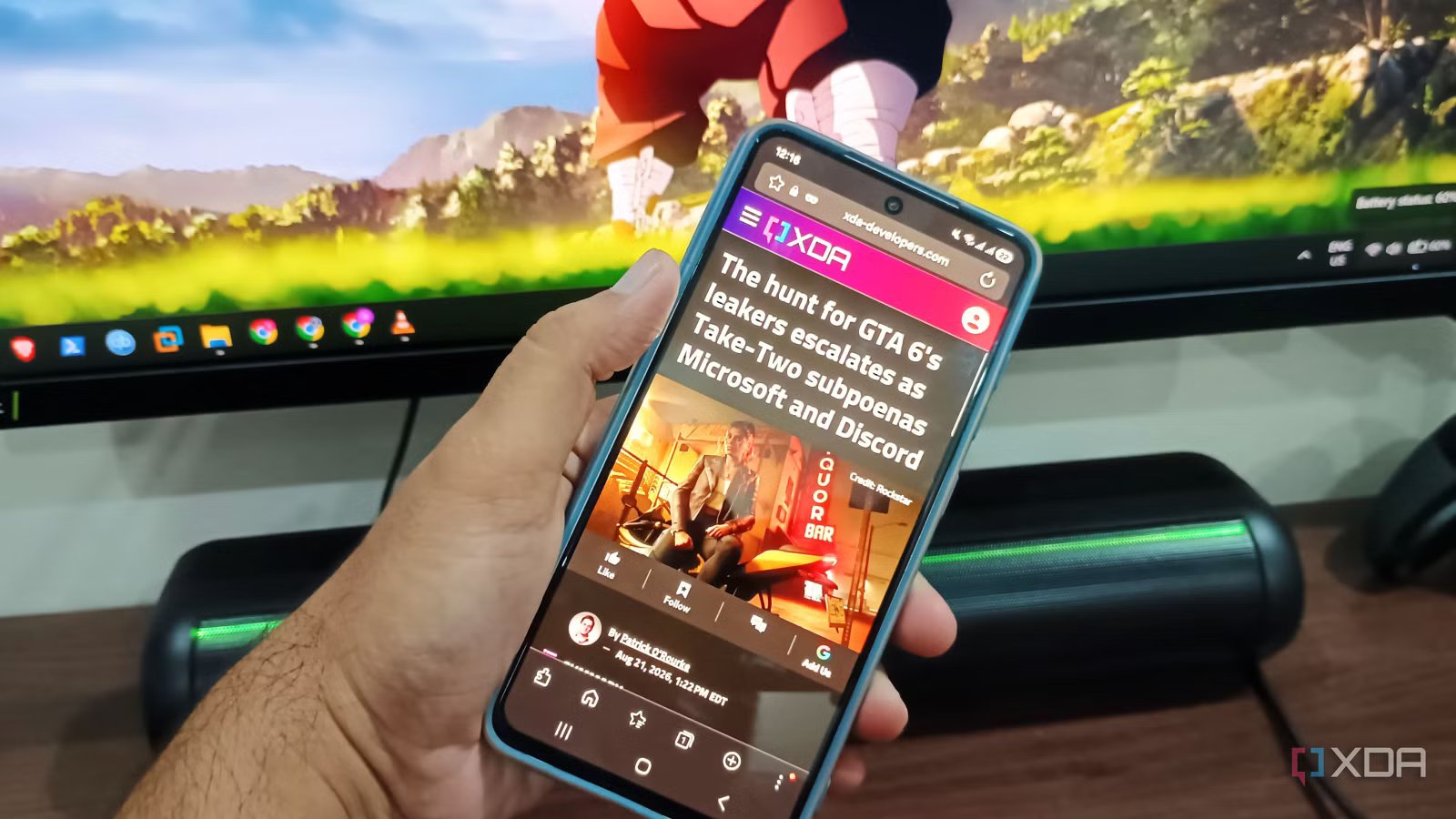
The layout was much simpler compared to Chrome. Its toolbar is at the bottom, which I find more convenient. Long screen phones make it harder to reach the top than the bottom. Chrome can also place the address bar at the bottom, but you have to enable the option manually and it only appears after opening the first tab.
Samsung’s browser toolbar adds thoughtful buttons like back, forward, home, bookmarks, tabs, and settings buttons, while Chrome only has half of that. I find it annoying that Chrome doesn’t include a bookmarks button in the menu bar. I have to expand the drop down menu to access the option. Bookmarks should be easier to access as users save them for quick access.
A limited layout just doesn’t cut it anymore
Open to customization
Instead of expanding the shortcut icons on the home page, Chrome wastes the bottom space. Samsung browser takes a smarter approach and can stack multiple rows of web page shortcuts instead of adding side scrolling Same option as Chrome. I like the freedom of managing the layout and menus without confusing the home page with Discover content. Even after you disable a channel in Chrome, there’s a small sign that it’s disabled.
I’m also surprised by the lack of awareness of keeping a limited, minimally customizable toolbar. I can’t add multiple toolbar shortcuts in Chrome, and there is only one other option that allows the browser to dynamically display an additional button based on usage. Samsung Browser lets you choose your preferred toolbar settings if you hate the default layout. I changed the forward and back buttons to extensions and other settings option. You can even customize the options that appear in the advanced menu, and Chrome forces you to default.
You can add backgrounds in both browsers, but Samsung’s default directory is more impressive. If you don’t like solid colors, you have several categories to choose from. It includes customization and avoids adding feed elements which I hate in Chrome. I like a neat, customizable home page, and Samsung’s native offering gives me that without jumping through hoops. There are even a few options in the tab view section, and you can choose from the usual Grid or List layouts, or switch to Stack, which is my favorite.
Additional features that keep me invested
Chrome should take notes
I think the “thoughtful design” might be a tough sell for loyal Chrome users. But there’s a lot more to Samsung’s browser than UI customization. For starters, every popular mobile browser supports extensions, and Chrome shows little interest in this direction. Skipping ads on Android browsers isn’t easy, and custom extensions like AdBlock can help you bypass them without breaking a sweat. It’s an official Samsung browser extension, and I can browse the most visited websites without having to deal with multiple styles of static, pop-up, and video ads.
Watching YouTube content is an extra activity I do in Samsung browser to get past non-skippable, double-triple and in-between ads in videos. Chrome will never offer an ad blocker, at least not in my opinion, due to its success and business dependence on ads. But even if you use Chrome as your primary browser for some tasks, you can use Samsung’s default browser just for YouTube and skip buying a premium plan just for that purpose.
The next biggest advantage of Samsung browser is the way it works with dark mode. Chrome’s dark mode can’t change the look of certain websites like Facebook, and it gets annoying after a while. It will make your eyes look amazing, especially if you use a dark theme with the phone’s dark mode. Samsung’s browser handles it well without requiring any extensions or tweaks. There are also a few more surprises, such as Video Assistant for more control over the video playback on a page on websites. It’s a small thing, but on-screen controls make the experience so much better.
I don’t use AI much, but browser summaries, image and text extraction, etc. works well with the Samsung phone’s AI capabilities for activities such as The browser’s incognito mode is slightly different from Chrome’s incognito mode, and it hides downloads from the Gallery app, thereby isolating your browsing footprint. The file stays hidden until I move it to a public folder. You can also use authentication to protect your incognito session. Even if someone else picks up the phone and tries to access it, they won’t be able to access it without a password or biometrics.
Native apps may be better
Samsung tends to ship a lot of bloatware with phones, but some apps, like its default browser, are better than you might think. A direct feature comparison makes Chrome feel like a half-baked mobile browser. It still doesn’t match Chrome’s cross-platform experience, but that’s not what every user wants.